



What’s New in ChromaQA 7.5: More Flexible Color Quality Control for Printers and Brands
ChromaQA 7.5 is now available, bringing 18 new features and enhancements across SPEC, PRESS, STANDARDS, ADMIN, and SmartINK. Highlights include the ability to specify measurement locations within artwork, import color standards from an ICC profile, customize drawdown reports, and create multiple ScoreCards.
Across the ChromaQA suite, version 7.5 gives users more control over how color standards are created, measured, evaluated, and reported. The release also expands support for PantoneLIVE, Colibri colorant sets, SmartINK corrections, and SpectroCheck calibration reporting, helping printers and brands simplify everyday color quality workflows.
Specify Measurement Locations Within Artwork
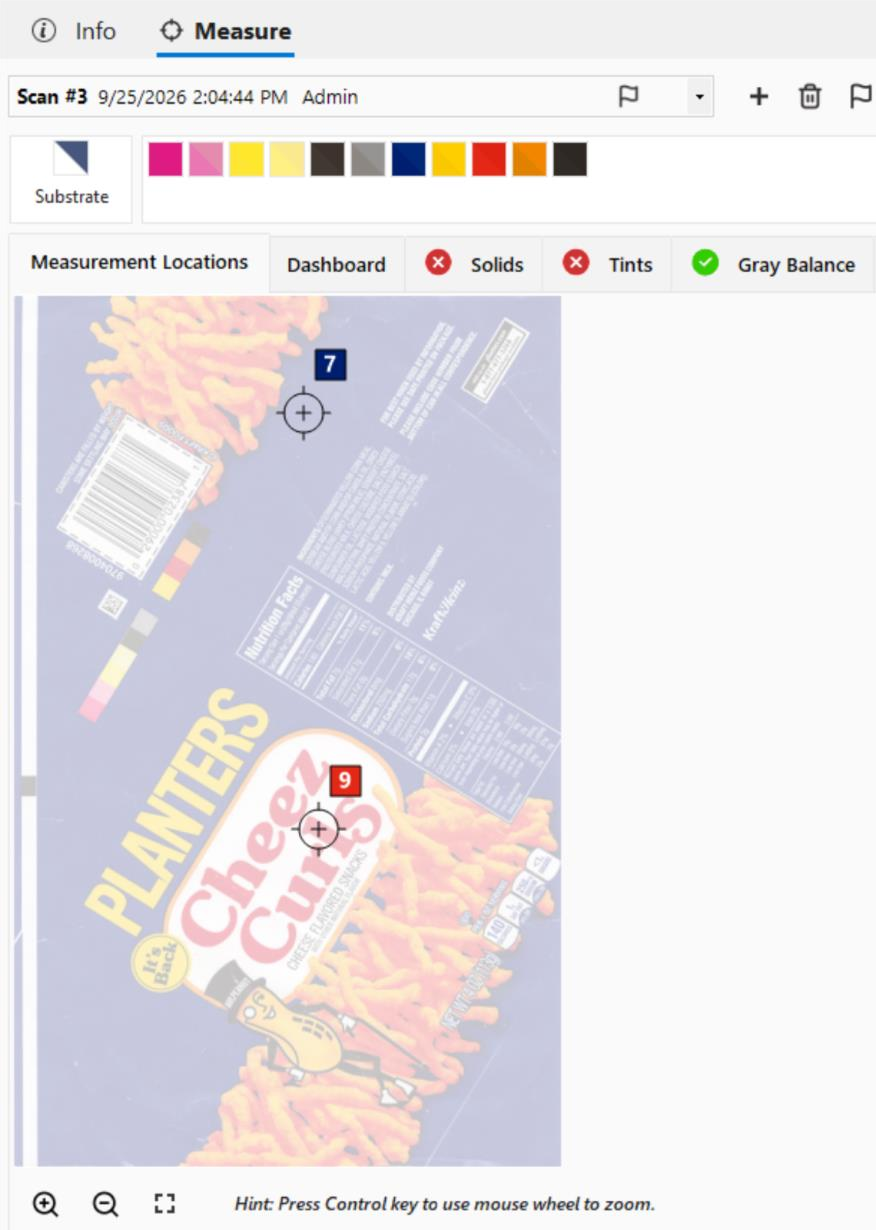
When creating templates in Chroma Spec, press operators now get a visual reference for every job — and, if you choose, an exact map of where to take each measurement.
How to use the new feature:
- Option 1 — Visual confirmation. Load the job artwork (JPG or PDF) when building the template in SPEC. Press operators see the actual label or package, confirming at a glance that they’re running the correct job.
- Option 2 — Guided measurement. Go further by pinning the exact measurement locations, in the SPEC module, for each color directly on the artwork, so operators know precisely where to take each reading.
- Results: Fewer setup errors and faster onboarding for new press operators.
Import Color Standards From an ICC Profile
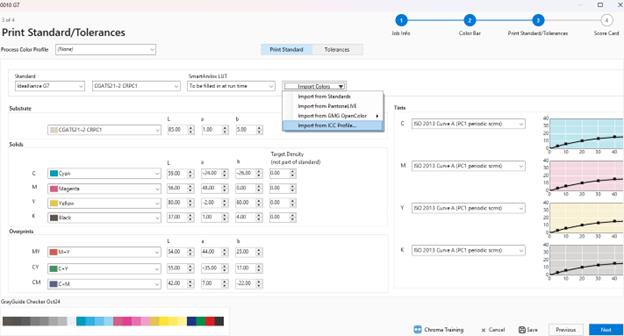
If your print standards already live inside an ICC profile, there’s no need to re-key CIELab values and TVI curves by hand. ChromaQA now imports them directly while you build a job template. In addition, users can import from Chroma Standards, PantoneLIVE, or GMG OpenColor. CIELab values and TVI curves can also be imported, with support for ICC v2 and v4 as well as CMYK and multichannel profiles.
Create Customized color quality Drawdown Reports in Chroma Standards
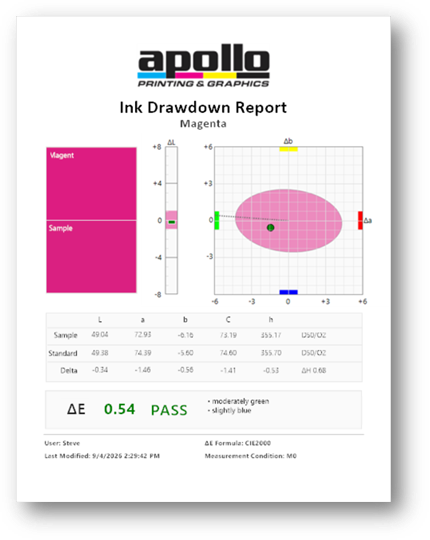
Customers increasingly expect documentation alongside a physical drawdown. ChromaQA can now generate a polished, customer-ready report directly from the color standard itself. Reports can be printed or saved as PDFs for easy sharing with end customers to highlight color quality.
Change the Illuminant and Observer for PantoneLIVE Colors
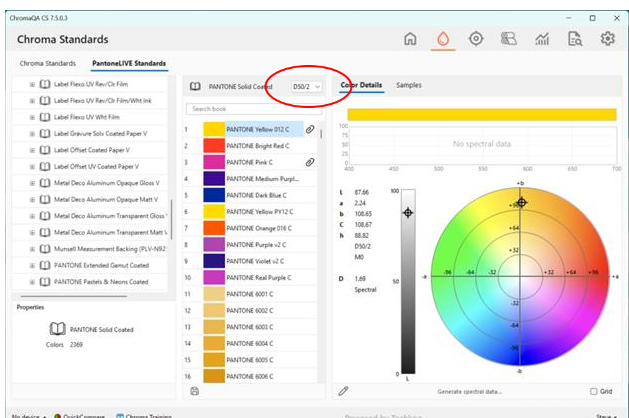
PantoneLIVE colors can now be evaluated under the specific illuminant and observer combination your workflow requires, instead of a single fixed default. Once selected, ChromaQA targets the corresponding CIELab values when samples are measured. This feature comes at an ideal time, as brand owners increasingly specify a target illuminant and observer for approval, and ChromaQA can now match those requirements exactly.
New reporting metric: Substrate Opacity
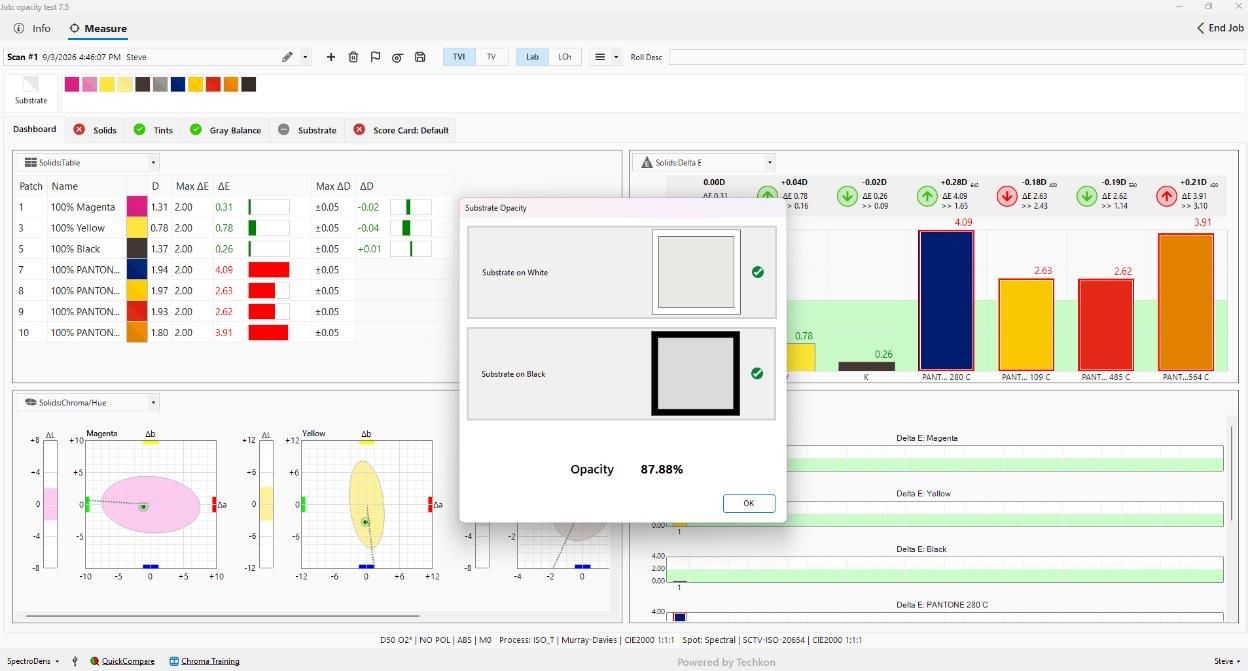
Opacity has a direct effect on perceived color, especially on film, foil, and lightweight packaging stock. ChromaQA can now measure and report it automatically, right alongside your standard color data.
The opacity measurement enables operators to ensure either the white ink or the substrate in their job is in specification. This is important because if the opacity of the substrate is incorrect, the colors printed on top of it may also appear incorrect. This is another variable ChromaQA allows users to control on press.
Create Multiple ScoreCards
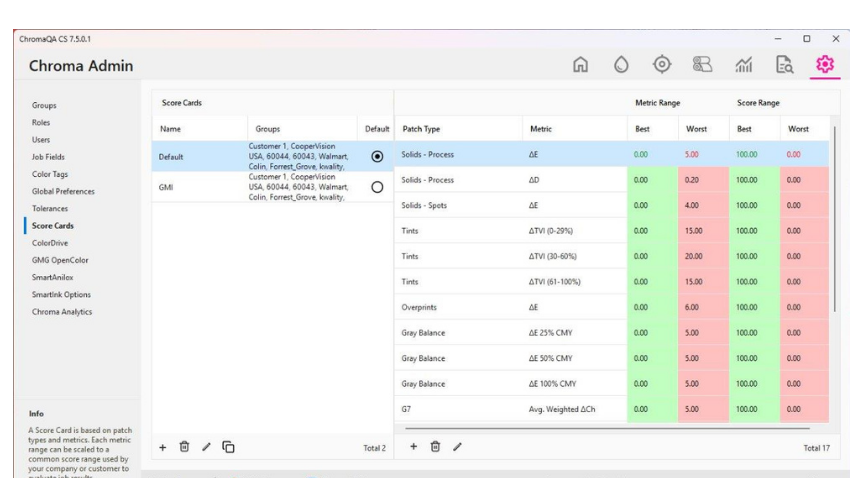
Different customers, certification programs, and internal benchmarks rarely share one scoring standard. Rather than compromise on a single global scorecard, you can now maintain as many as you need. To use this feature, simply define the scorecards directly in the Admin module, customize each one, and assign them to the desired template.
ScoreCard Enhancements
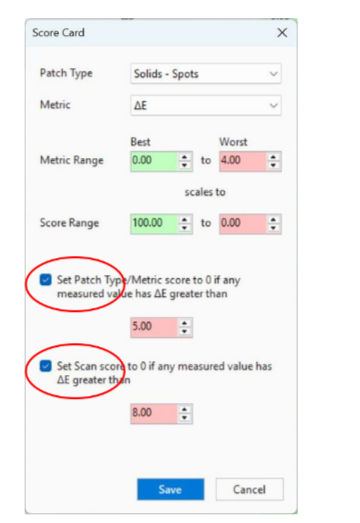
The score for any patch type metric has always been based on the average of all colors of that patch type in a scan — which can let one badly out-of-tolerance color hide inside an otherwise healthy average. v7.5 adds a safety net that catches it immediately.
- Set an upper limit that no single color is allowed to exceed, independent of the averaged score.
- Patch Type/Metric scoring: if enabled and the threshold is exceeded, that entire Patch Type/Metric score is forced to 0.
- Scan scoring: if enabled and the threshold is exceeded, the entire Scan score is forced to 0.
New “Master” Templates
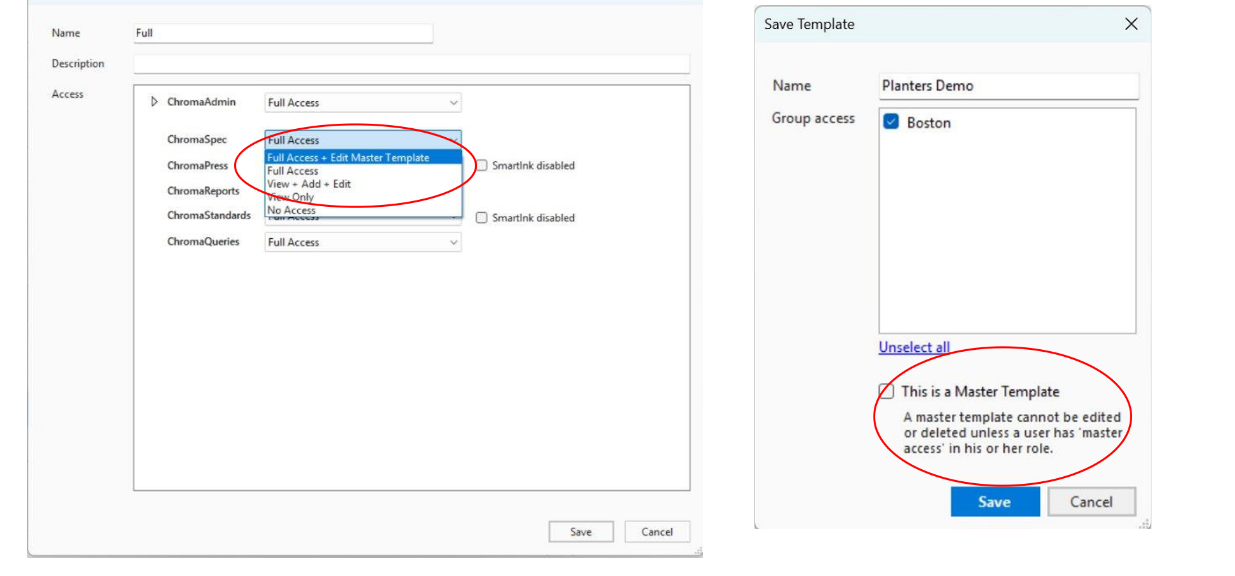
As more users build and edit templates, protecting your approved, production-ready templates from accidental changes becomes essential. v7.5 allows users to create a role with Master Template access in Admin, then assign it to the users who manage approved templates. Templates marked “Master” can only be edited or deleted by users holding that role. Users without permission can still duplicate a master template and edit their own copy — the original just stays protected.
Disable Color Channels in a Color Bar
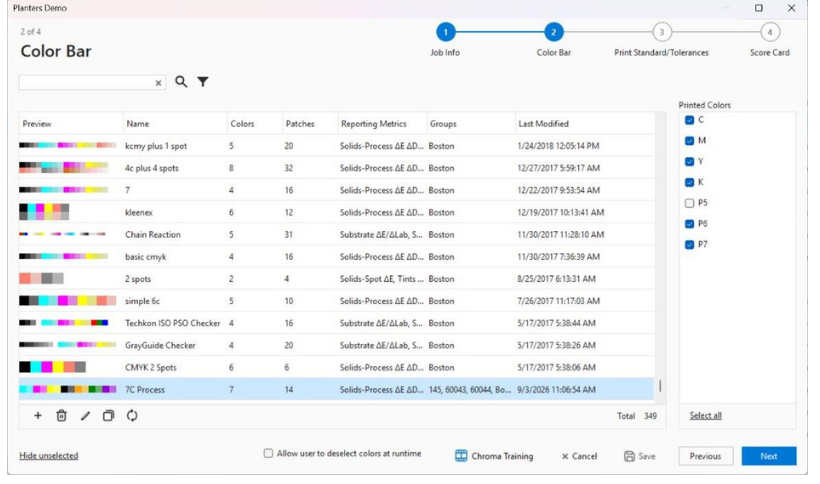
Rather than maintaining a near-duplicate color bar layout for every variation of a job, start from one standard layout and simply switch off the channels you don’t need for a given template.
Example shown: A 7-color process bar with one spot channel (P5) disabled for a template that doesn’t use it.
Create SmartINK Colorant Set from Colibri
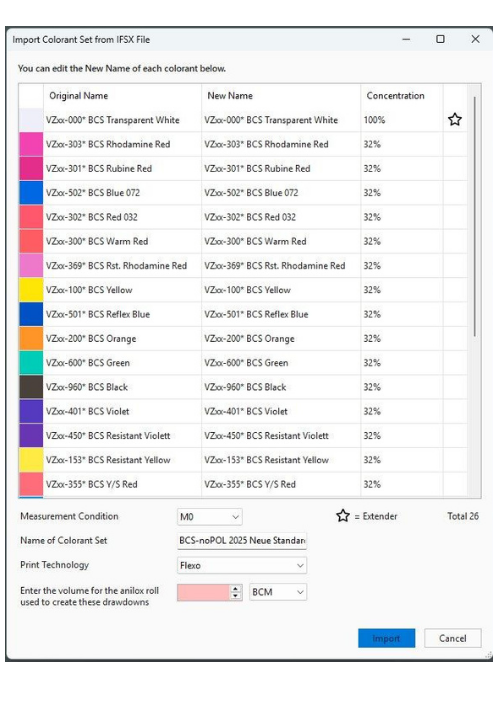
If you already maintain colorant sets in Colibri, you can now import them directly into ChromaQA, which automatically creates a SmartINK-ready colorant set with no need to recreate it from scratch or re-run drawdowns.
SpectroCheck enhancements
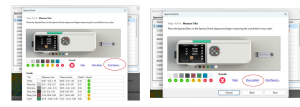
Confidence in your measurement device underpins confidence in every reading it produces. SpectroCheck now supports a report that displays reference values, measured values, and deltaE values after device calibration. This additional documentation can help support ISO compliance.
Greater Precision with SmartINK Cups Feature
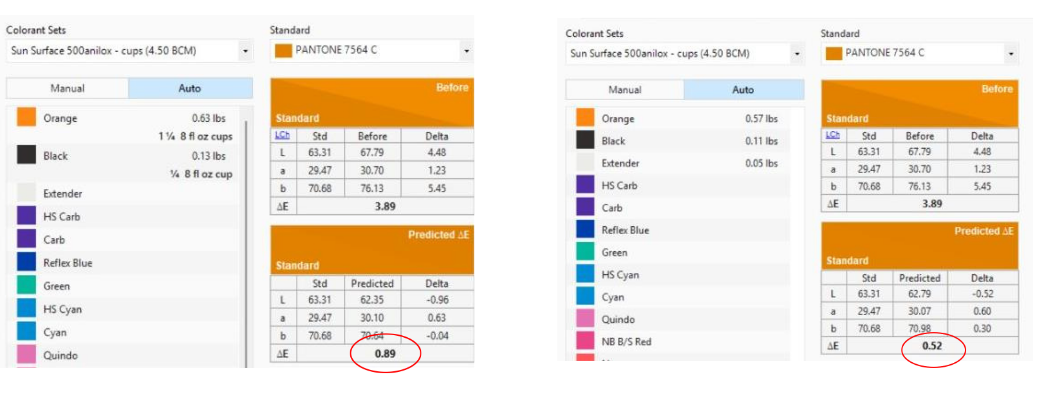
Since version 7, SmartINK has had the ability to convert the recipe correction into cup sizes defined in the Admin module — but the predicted ΔE it displayed was always for the weighed or dispensed ink amount. Now, in version 7.5, SmartINK will round to the nearest ¼ cup size AND recalculate the predicted deltaE based off of this rounded ¼ cup information. This allows you to see the precise predicted deltaE when using the “Show in cups” feature.
Color Book Sort Options in STANDARDS
As color libraries grow to hundreds or thousands of entries, finding the right standard quickly starts to matter.
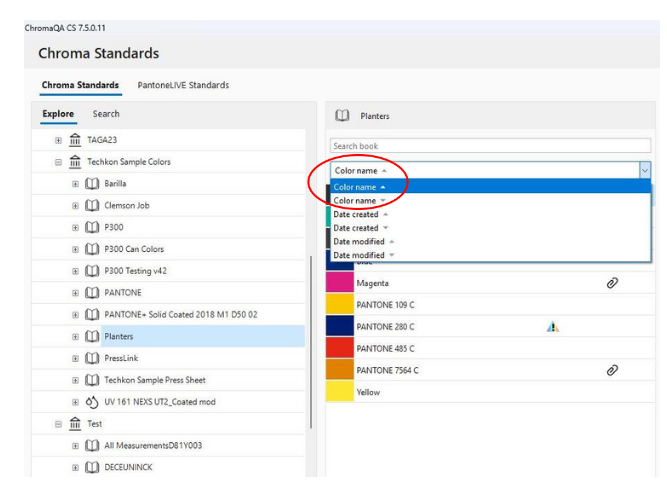
Chroma Standards now supports sorting color books by:
- Color name ascending or descending, for quick alphabetical lookup.
- Date created ascending or descending, to find the newest or oldest entries.
- Date modified ascending or descending — handy for finding a standard someone just updated.
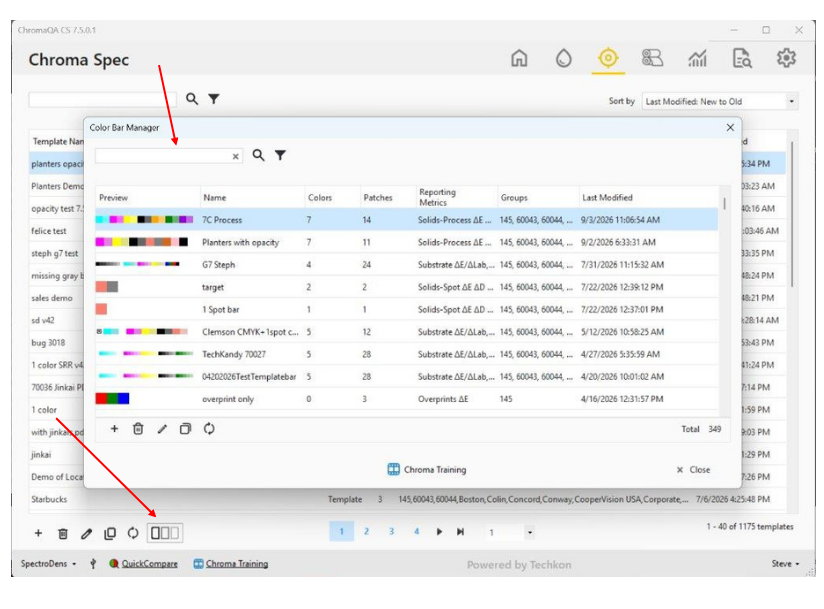
Color Bar Manager Window & Searching
Previously, editing a color bar meant opening a template. Now, from the SPEC module, the new Color Bar Manager lets you create, edit, and organize color bars on their own — and find the one you need, fast.
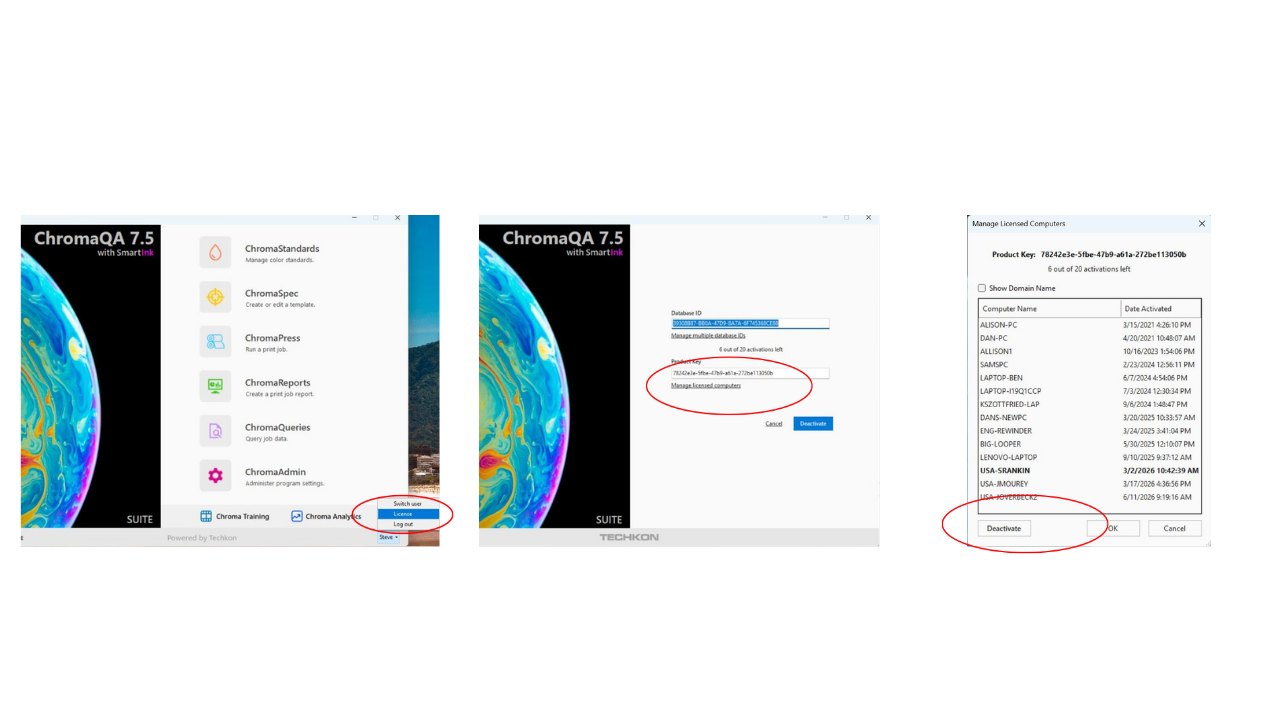
Users Can Now Deactivate Computers Consuming a ChromaQA License
Every ChromaQA license key supports a limited number of activated computers. Admin users can now free up a seat themselves, in minutes, with no need to contact datacolor | Techkon.
How to utilize the new feature:
- Step 1 – From the HOME screen, click on your username in the lower right corner. Now select the option called “License” in the menu.
- Step 2 – Click the “Manage licensed computers” link located underneath your Product Key.
- Step 3 – Now select a PC name and then click the “Deactivate” button in the lower left corner. You can also see how many licenses are available on your product key.
NOTE – You must be an “admin” user to deactivate other computers.
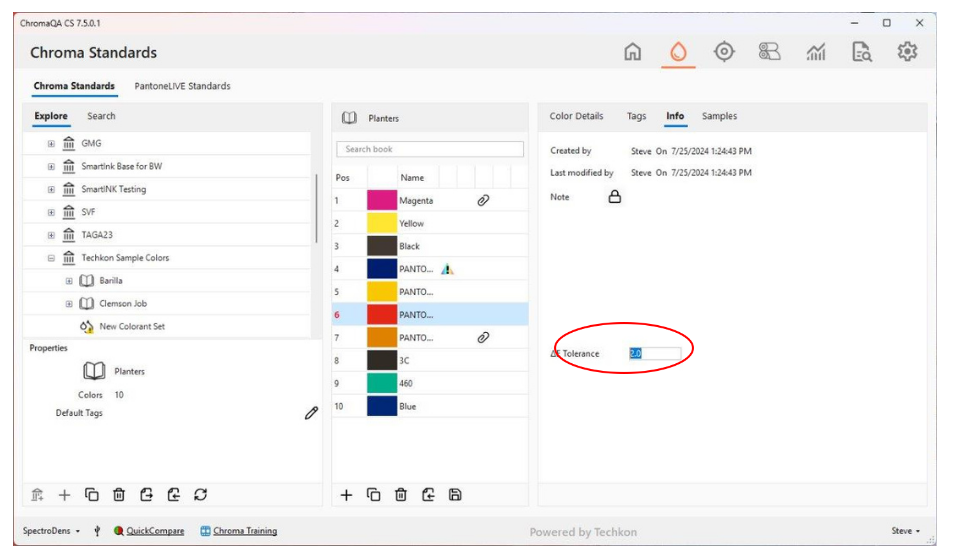
Option to Set dE Tolerance per Color in STANDARDS
A single global ΔE tolerance works for most colors — but a critical brand color may need a tighter (or looser) tolerance of its own. Now you can set that at the individual color level.
How to utilize the new feature:
- Select the color in STANDARDS and open its Info tab.
- Enter the ΔE tolerance value for that specific color.
- Automatic override. When imported into a SPEC template, the color’s own tolerance overrides the template’s global setting.
- Completely optional — set it only for the colors that need special handling.
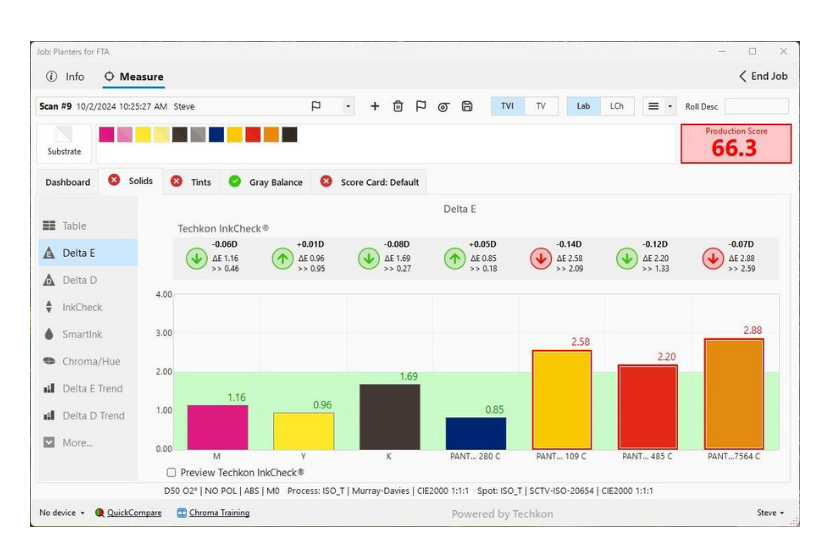
Changed “Back” to “End Job” in PRESS Module
We made a minor change to the user interface in the PRESS module. In the upper right corner, we changed the “Back” button to now say “End Job”. The goal of this change was aimed squarely at reducing confusion for operators who are new to ChromaQA.
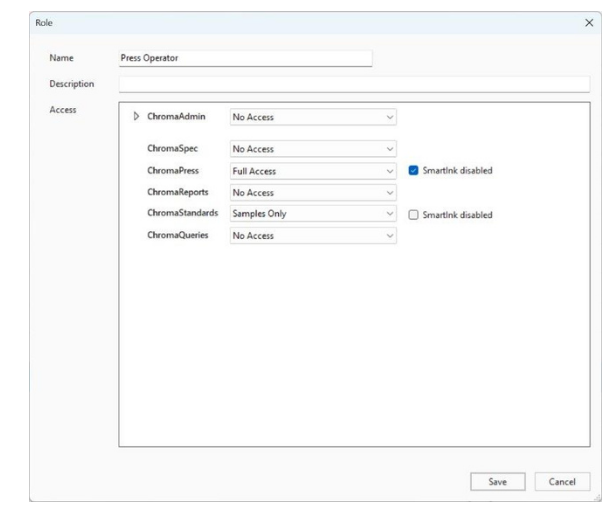
Disable SmartINK Access by Role
Not every operator needs — or should have — access to SmartINK’s ink-correction tools. Admins can now restrict that access precisely, at the role level.
Bug Fixes
- Fixed issue in STANDARDS that sometimes caused an issue when importing .IFSX files for conversion to SmartINK Colorant Sets
- Fixed issue in STANDARDS where default color tags were not getting saved to a color standard
- Fixed issue in STANDARDS where ASCII CGATS files would not import properly if they were double spaced
- Fixed bug where a role with “View & Run” permissions in the PRESS module could still edit jobs
- Fixed bug where SmartINK History results were incorrect if the extender was not the first color in the colorant set
- Fixed a bug in PRESS module where sometimes the Production flag was not saved into jobs
- Fixed a bug in the Query module related to time and data format set in Windows Regional Settings